Managing Email Servers Across Multiple Cloud Providers Without Losing Your Mind
Running PMTA servers on Linode, Vultr, and DigitalOcean at the same time is a juggling act. I tried different approaches and heres what actually worked for keeping everything organized.

So heres the situation I was in last year. I had servers on Linode because thats where I started, then I added some on Vultr because they had better pricing for certain regions, and then a client needed something on DigitalOcean specifically. Before I knew it I was logging into three different dashboards multiple times a day just to check on things.
If you do email sending at any real scale, you probably know this feeling. Each provider has its own dashboard, its own API, its own way of doing things. And when something goes wrong at 11pm you dont want to be fumbling around trying to remember which dashboard has which server.
The Dashboard Juggling Problem
My typical morning used to look like this: open Linode dashboard, check my 8 servers there. Open Vultr, check those 6. Open DigitalOcean, check those 3. Then open PuTTY and connect to whichever ones needed attention. Sometimes I'd also need to check PMTA status on specific servers which meant more SSH sessions.
I tried keeping a spreadsheet with all server IPs, credentials, and what was running on each one. That worked for about a month before it got out of date. Then I tried using a notes app. Same problem — the info was always stale because I'd forget to update it after making changes.
What I Actually Needed
What I really wanted was one place where I could see all my servers regardless of which cloud provider they were on. I wanted to be able to SSH into any of them quickly, check PMTA status, and maybe even create or delete instances without switching between five different browser tabs.
I looked at a few server management panels but most of them were either way too complex (designed for DevOps teams with 500 servers) or they didnt support PMTA specifically. I dont need Kubernetes orchestration, I need to install PowerMTA and manage my email servers.
How I Solved It
I ended up using PMTAcore mainly because it was the only tool I found that combined cloud server management with PowerMTA installation in one app. The setup was pretty straightforward — I added my API tokens for Linode, Vultr, and DigitalOcean, and all my servers appeared in one list.
The thing I appreciate most is the simplicity. I open the app, I see all 17 of my servers in one view. I can see which ones are running, which cloud provider each one is on, and I can click into any of them to get more details or open an SSH session. No more spreadsheet, no more switching dashboards.
Creating New Servers
When I need a new server, I pick the cloud provider, choose the region and plan, and create it right from the app. Then once its booted up I install PMTA on it with a couple clicks. The whole process from "I need a new server" to "PMTA is running and configured" takes maybe 20 minutes now.
I also started using custom servers for a few dedicated boxes I rent from a smaller provider. You just add the IP and SSH credentials and PMTAcore treats them the same as any cloud instance. So even my non-API servers are in the same unified view.
The SSH Manager Saved Me Time Too
Before, I had PuTTY sessions saved for each server but the passwords would change and I'd have to update them manually. Now all my SSH connections are managed in PMTAcore. I click on a server, hit the terminal button, and Im in. The credentials are already there because the app knows them from the cloud API or from when I added the custom server.
Its a small thing but when you connect to servers 10-15 times a day, not having to look up passwords or deal with PuTTY saves a surprising amount of time and frustration.
Campaign Sending
I also started using the campaign manager feature which I honestly didnt plan on using initially. I was using a separate tool for sending campaigns but having it built into the same app where I manage my servers just made more sense. Upload a list, pick a template, select which SMTP servers to use, and send. Nothing fancy but it gets the job done without needing yet another tool.
What I'd Tell Someone Starting Out
If youre just getting into email infrastructure and youre about to set up your first few PMTA servers, do yourself a favor and start organized from day one. Dont be like me and end up with servers scattered across providers with credentials in random text files.
Whether you use PMTAcore or some other approach, have a system. Know where all your servers are, keep credentials in one secure place, and have a consistent process for setting up new servers. It'll save you so many headaches down the road.
For me personally, PMTAcore was the right fit because it handles the specific things I need — PMTA installation, multi-cloud management, SSH, email validation, and campaign sending. The free trial gives you 30 days which is plenty of time to see if it works for your setup. The paid plans start at $199 for 6 months if you decide to stick with it.
Related Articles

PowerMTA Gmail Bulk Sender Requirements 2026: Compliance Guide
Follow step-by-step PowerMTA configuration, SPF/DKIM/DMARC setup, and DNS changes to meet Google and Yahoo 2026 bulk sender rules. Includes spam-rate limits, unsubscribe, and automated auditing.
Read more →
The Complete PowerMTA Setup Guide for High-Volume Email Sending
Learn how to install, configure, and optimize PowerMTA for high-volume email delivery. This complete guide covers DNS authentication, VirtualMTAs, IP warm-up, deliverability best practices, and scaling your email infrastructure.
Read more →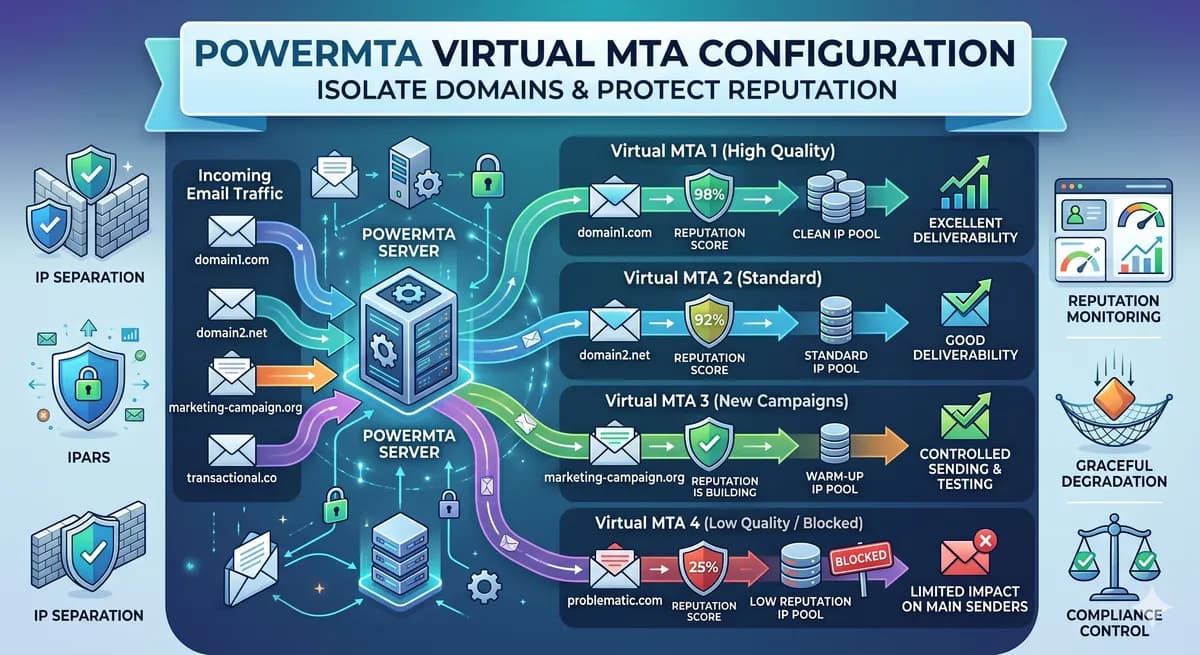
PowerMTA Virtual MTA Configuration – Isolate Domains & Protect Reputation
Using a single PowerMTA config for all domains is a critical mistake. Learn how to configure Virtual MTAs to isolate sending reputation, separate transactional from marketing mail, and prevent one bad domain from killing all your IPs.
Read more →