How to Manage Multiple Email Servers with PowerMTA
One server is manageable. Five servers get complicated. Twenty servers become a full-time job. This guide covers strategies for managing multiple PowerMTA servers without losing your mind.

When you're just starting out, one PowerMTA server handles everything. But as your email volume grows, you'll need more servers. Maybe you need to separate transactional email from marketing. Maybe you're expanding to new regions. Maybe you just need more sending capacity.
Whatever the reason, managing multiple PowerMTA servers introduces a whole new set of challenges. This guide covers the strategies, tools, and best practices for keeping everything running smoothly.
Why Run Multiple Servers?
There are several good reasons to scale beyond a single server:
- Volume capacity: A single server can only handle so much. Spreading the load across multiple servers lets you send more email without overloading any one machine.
- Reputation isolation: Keep your transactional emails (password resets, order confirmations) on separate servers from marketing campaigns. If a marketing campaign causes reputation issues, your transactional delivery stays clean.
- Geographic distribution: Servers in different regions can improve delivery speed to recipients in those areas.
- Redundancy: If one server goes down, the others keep sending. No single point of failure.
- Client separation: If you're an email service provider, each client can have their own server or group of servers.
Planning Your Multi-Server Setup
Server Roles
Before adding servers, decide what each one will do. A common setup looks like this:
Server 1 (Transactional)
  └── Handles password resets, receipts, notifications
  └── IPs: 1.2.3.4, 1.2.3.5

Server 2 (Marketing - Primary)
  └── Main marketing campaigns
  └── IPs: 2.3.4.5, 2.3.4.6, 2.3.4.7

Server 3 (Marketing - Secondary)
  └── Overflow and warmup
  └── IPs: 3.4.5.6, 3.4.5.7

Server 4 (Testing/Staging)
  └── Test new configs before production
  └── IPs: 4.5.6.7
IP Allocation
Each server needs its own set of IP addresses. Don't share IPs across servers — it creates confusion and makes troubleshooting harder. Plan your IP allocation before you start:
- Transactional servers: 2-3 IPs each (lower volume, higher priority)
- Marketing servers: 4-10 IPs each (higher volume, need rotation)
- Keep spare IPs for warmup and expansion
For details on setting up IP rotation within each server, check our IP rotation guide.
DNS Strategy
With multiple servers, DNS management gets complex fast. Each IP needs:
- An A record pointing to the IP
- A PTR (rDNS) record matching the A record
- DKIM records for each selector
- SPF records covering all sending IPs
Your SPF record needs to include every IP across all servers. As you add servers, remember to update it. A missing IP in SPF means failed authentication for emails from that IP.
Managing DNS for dozens of IPs across multiple servers is one of the most tedious parts of multi-server management. PMTAcore's DNS Automation can handle this for you.
Configuration Management
Keep Configs Consistent
When you have multiple servers, configuration drift becomes a real problem. Server 1 has one set of domain rules, server 2 has slightly different ones, and server 3 has settings from six months ago that nobody updated.
Best practices for config management:
- Use a base config template. Create a standard config that all servers share, then add server-specific overrides.
- Version control your configs. Store your PowerMTA configs in Git. Track every change.
- Document changes. When you change a setting on one server, note whether it should be applied to all servers.
Common Config Structure
A good approach is to split your config into reusable pieces:
/etc/pmta/
  ├── config              # Main config (includes the others)
  ├── conf.d/
  │   ├── global.conf     # Settings shared across all servers
  │   ├── domains.conf    # Domain-specific rules
  │   ├── vmtas.conf      # Virtual MTA definitions (server-specific)
  │   └── dkim.conf       # DKIM signing rules
  └── dkim/
      ├── domain1.pem
      └── domain2.pem
The main config file includes the others:
# /etc/pmta/config
include /etc/pmta/conf.d/global.conf
include /etc/pmta/conf.d/domains.conf
include /etc/pmta/conf.d/vmtas.conf
include /etc/pmta/conf.d/dkim.conf
This way, global.conf and domains.conf can be identical across servers, while vmtas.conf is unique to each server (different IPs).
Monitoring Multiple Servers
Monitoring one server is easy. Monitoring five or ten requires a system.
What to Monitor
- Queue sizes: Are emails backing up on any server?
- Delivery rates: Is one server performing worse than others?
- Bounce rates: Are bounces spiking on a specific server or IP?
- Blacklist status: Is any IP across any server blacklisted?
- Server health: CPU, memory, disk space, network connectivity
- PowerMTA process: Is the service running on all servers?
Checking Status Across Servers
You can SSH into each server and run PowerMTA commands:
# On each server
pmta show status
pmta show queues
pmta show vmtas
But doing this manually across multiple servers is slow and error-prone. You need either automation scripts or a management tool.
Blacklist Monitoring
With multiple servers and many IPs, blacklist monitoring becomes critical. One blacklisted IP can affect delivery for an entire server. Check all your IPs regularly using the IP Blacklist Checker. For more on handling blacklists, see our DNSBL guide.
Scaling Strategies
Horizontal Scaling
The simplest approach: add more servers with the same configuration. Each server handles a portion of the total volume. Use a load balancer or your application logic to distribute emails across servers.
Application → Load Balancer → Server 1 (SMTP injection)
                             → Server 2 (SMTP injection)
                             → Server 3 (SMTP injection)
Functional Scaling
Separate servers by function rather than just adding capacity:
- Dedicated transactional servers (high priority, low volume)
- Dedicated marketing servers (lower priority, high volume)
- Dedicated warmup servers (new IPs being warmed up)
This approach gives you better control over reputation and makes troubleshooting easier.
When to Add a New Server
Consider adding a server when:
- Your current servers are consistently above 70% capacity
- Queue times are increasing during peak sending
- You need to isolate a new client or email type
- You're expanding to a new geographic region
- You need more IPs than your current servers can handle
Common Challenges
Configuration Sync
Keeping configs in sync across servers is an ongoing challenge. When you update domain rules on one server, you need to remember to update all the others. Missed updates lead to inconsistent behavior and hard-to-debug delivery issues.
IP Warmup Across Servers
When adding a new server, all its IPs need warmup. You can't just spin up a server and start sending at full volume. Plan your warmup schedule for each new server. Our IP warmup guide covers the process in detail.
Log Aggregation
With multiple servers, you need a way to aggregate logs and metrics in one place. Checking logs on each server individually doesn't scale. Consider centralized logging solutions or tools that can pull data from all servers.
SSH Access Management
Managing SSH keys and access across multiple servers needs attention. Use key-based authentication, disable password login, and keep track of who has access to what.
PMTAcore: Built for Multi-Server Management
Everything we've described in this guide — the monitoring, the config management, the DNS setup, the blacklist checking — gets exponentially harder as you add servers. That's exactly why PMTAcore exists.
PMTAcore was designed from the ground up for managing multiple email servers:
- Cloud Server Management — add, monitor, and manage servers across DigitalOcean, Vultr, Linode, and other providers from one dashboard
- PowerMTA Management — install and configure PowerMTA on any server without SSH
- DNS Automation — manage DNS records for all your domains and IPs in one place
- IP Blacklist Checker — monitor all IPs across all servers for blacklist issues
- SSH Manager — access any server's terminal when you need it
- Campaign Manager — send campaigns across multiple servers with automatic distribution
- SMTP Tools — test connectivity on any server from one interface
Instead of juggling SSH sessions, config files, and monitoring scripts across a dozen servers, you manage everything from one application.
Try PMTAcore free, download it, or check our pricing to find the right plan for your infrastructure.
Related Articles

PowerMTA Gmail Bulk Sender Requirements 2026: Compliance Guide
Follow step-by-step PowerMTA configuration, SPF/DKIM/DMARC setup, and DNS changes to meet Google and Yahoo 2026 bulk sender rules. Includes spam-rate limits, unsubscribe, and automated auditing.
Read more →
The Complete PowerMTA Setup Guide for High-Volume Email Sending
Learn how to install, configure, and optimize PowerMTA for high-volume email delivery. This complete guide covers DNS authentication, VirtualMTAs, IP warm-up, deliverability best practices, and scaling your email infrastructure.
Read more →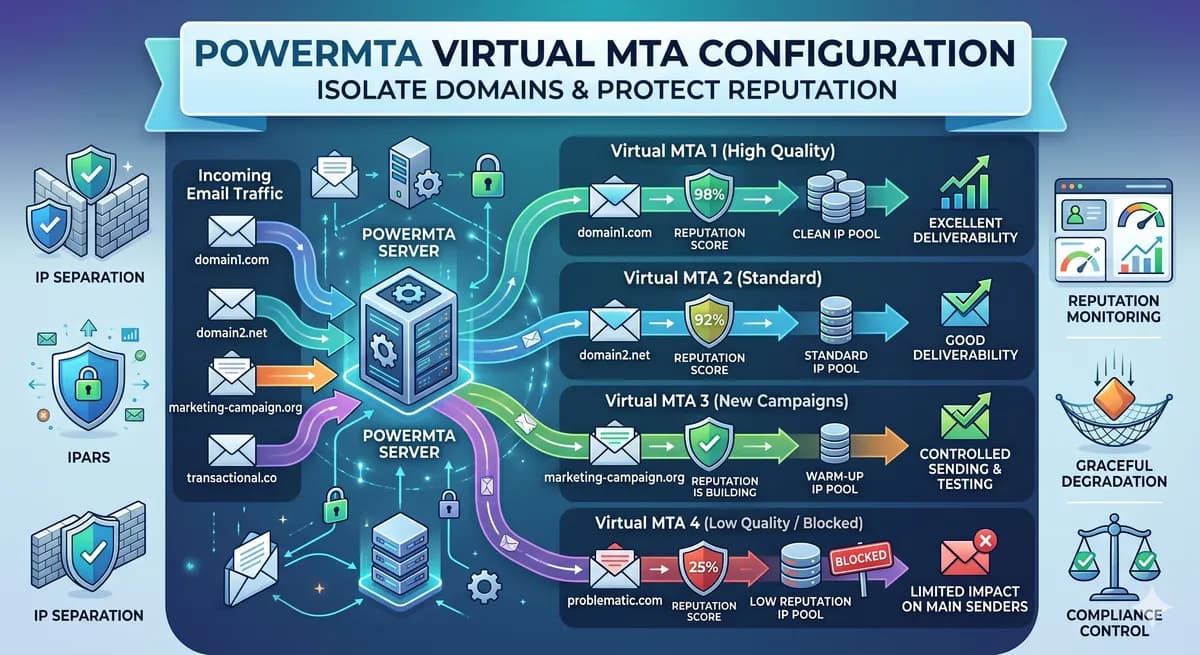
PowerMTA Virtual MTA Configuration – Isolate Domains & Protect Reputation
Using a single PowerMTA config for all domains is a critical mistake. Learn how to configure Virtual MTAs to isolate sending reputation, separate transactional from marketing mail, and prevent one bad domain from killing all your IPs.
Read more →