PowerMTA Virtual MTA Configuration – Isolate Domains & Protect Reputation
Using a single PowerMTA config for all domains is a critical mistake. Learn how to configure Virtual MTAs to isolate sending reputation, separate transactional from marketing mail, and prevent one bad domain from killing all your IPs.
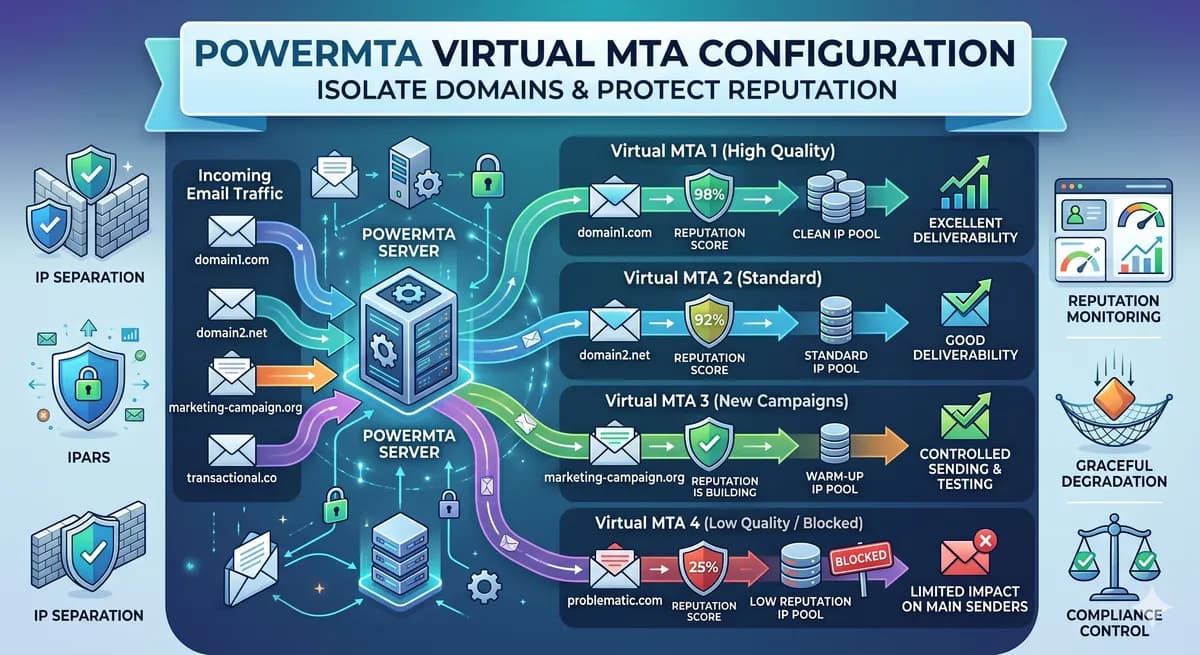
Why You Need Virtual MTAs
If you're sending all your email through a single PowerMTA configuration — marketing, transactional, cold outreach, multiple clients — you're one bad campaign away from losing everything. A spam complaint on one domain tanks the IP reputation for all domains sharing it.
Virtual MTAs (VMTAs) let you isolate sending streams. Each VMTA binds to a specific IP address and can have its own rate limits, bounce handling, and DKIM signing. Think of them as separate "virtual mail servers" running inside one PowerMTA instance.
When to Use Virtual MTAs
- Multiple domains — each domain gets its own VMTA and IP
- Mail type separation — transactional (receipts, password resets) vs. marketing (newsletters, promotions)
- Client isolation — if you manage email for multiple clients, one client's bad list shouldn't affect others
- IP warmup — dedicate a VMTA to a new IP while warming it up separately
Basic VMTA Configuration
Each VMTA binds to a source IP and gets its own settings. Add to /etc/pmta/config:
# VMTA for marketing emails - domain1.com

    max-msg-rate        200/h
    max-connect-rate    5/min
    max-smtp-out        3
    retry-after         15m
    max-retry-time      48h


# VMTA for transactional emails - domain1.com

  smtp-source-host 192.168.1.11 domain1.com
  <domain *>
    max-msg-rate        1000/h
    max-connect-rate    20/min
    max-smtp-out        10
    retry-after         5m
    max-retry-time      24h

</virtual-mta>

# VMTA for domain2.com (separate client)

    max-msg-rate        150/h
    max-connect-rate    5/min
    max-smtp-out        3
    retry-after         15m
    max-retry-time      48h
  </domain>
VMTA Pools – Group VMTAs for Load Balancing
If you have multiple IPs for one domain, group them into a pool. PowerMTA distributes traffic across the pool automatically:
  virtual-mta vmta-domain1-ip1
  virtual-mta vmta-domain1-ip2
  virtual-mta vmta-domain1-ip3

  smtp-source-host 192.168.1.11 domain1.com


<virtual-mta vmta-domain1-ip3>
  smtp-source-host 192.168.1.12 domain1.com
When injecting mail, specify the pool name and PowerMTA handles rotation:
X-Virtual-MTA: pool-domain1-marketingPer-Domain Rate Limits (ISP Throttling)
Major ISPs have different tolerance levels. Configure per-destination limits inside each VMTA:
  smtp-source-host 192.168.1.10 domain1.com

  # Gmail - conservative

    max-msg-rate        50/h
    max-smtp-out        2
    max-connect-rate    2/min


  # Yahoo - moderate


  # Microsoft (outlook, hotmail, live)

    max-msg-rate        60/h
    max-smtp-out        2
    max-connect-rate    2/min


  # Everything else

    max-msg-rate        200/h
    max-smtp-out        5
    max-connect-rate    5/min
DKIM Signing Per VMTA
Each VMTA should sign with its own domain's DKIM key for proper authentication alignment:
  smtp-source-host 192.168.1.12 domain2.com
  dkim-sign yes
  dkim-key /etc/pmta/dkim/domain2.com.key
  dkim-selector pmta2026
  dkim-domain domain2.com
  dkim-headers from:to:subject:date:message-id
</virtual-mta>
Routing Mail to the Correct VMTA
When injecting email via SMTP, use the X-Virtual-MTA header to route to the correct VMTA or pool:
From: newsletter@domain1.com
To: user@gmail.com
Subject: Weekly Update
X-Virtual-MTA: vmta-domain1-marketing

Your email content here...
PowerMTA strips this header before delivery — the recipient never sees it.
Monitoring VMTA Performance
Check queue status per VMTA:
# Show all VMTA queues
pmta show queues

# Show specific VMTA
pmta show queues --vmta=vmta-domain1-marketing

# Show top recipients with issues
pmta show toprcpts --vmta=vmta-domain1-marketing
Watch for queues building up on specific VMTAs — that usually means the ISP is throttling you and you need to reduce rates.
Common VMTA Mistakes
| Mistake | Impact | Fix |
|---|---|---|
| All domains on one IP | One bad domain kills all reputation | Separate VMTA per domain |
| Same rates for all ISPs | Gmail/Yahoo throttle you | Per-domain rate limits |
| No DKIM per VMTA | DMARC alignment fails | Sign with matching domain key |
| Marketing + transactional on same IP | Marketing complaints affect password resets | Separate VMTAs and IPs |
| Too many IPs too fast | New IPs have no reputation | Warm up each IP individually |
How PMTAcore Simplifies Multi-Domain Setup
PMTAcore's PowerMTA installer automatically configures DKIM keys and DNS records per domain during setup. The IP Rotation feature in the app lets you manage VMTA pools visually — add IPs, set weights, and monitor delivery without editing config files manually.
Combined with the DNS Manager (auto-apply SPF, DKIM, DMARC, rDNS via Cloudflare/GoDaddy/Namecheap APIs), you can spin up a fully isolated sending domain in minutes instead of hours.
Download PMTAcore to manage your multi-domain PowerMTA infrastructure from one place.
Key Takeaways
- Never send all mail types from a single VMTA — isolate by domain and mail type
- Use VMTA pools to distribute load across multiple IPs for the same domain
- Set per-ISP rate limits (Gmail, Yahoo, Microsoft all have different tolerances)
- Sign DKIM per VMTA with the matching domain key for DMARC alignment
- Monitor queues per VMTA to catch throttling early
- Warm up new IPs on dedicated VMTAs before adding them to production pools
Related Articles

PowerMTA Gmail Bulk Sender Requirements 2026: Compliance Guide
Follow step-by-step PowerMTA configuration, SPF/DKIM/DMARC setup, and DNS changes to meet Google and Yahoo 2026 bulk sender rules. Includes spam-rate limits, unsubscribe, and automated auditing.
Read more →
The Complete PowerMTA Setup Guide for High-Volume Email Sending
Learn how to install, configure, and optimize PowerMTA for high-volume email delivery. This complete guide covers DNS authentication, VirtualMTAs, IP warm-up, deliverability best practices, and scaling your email infrastructure.
Read more →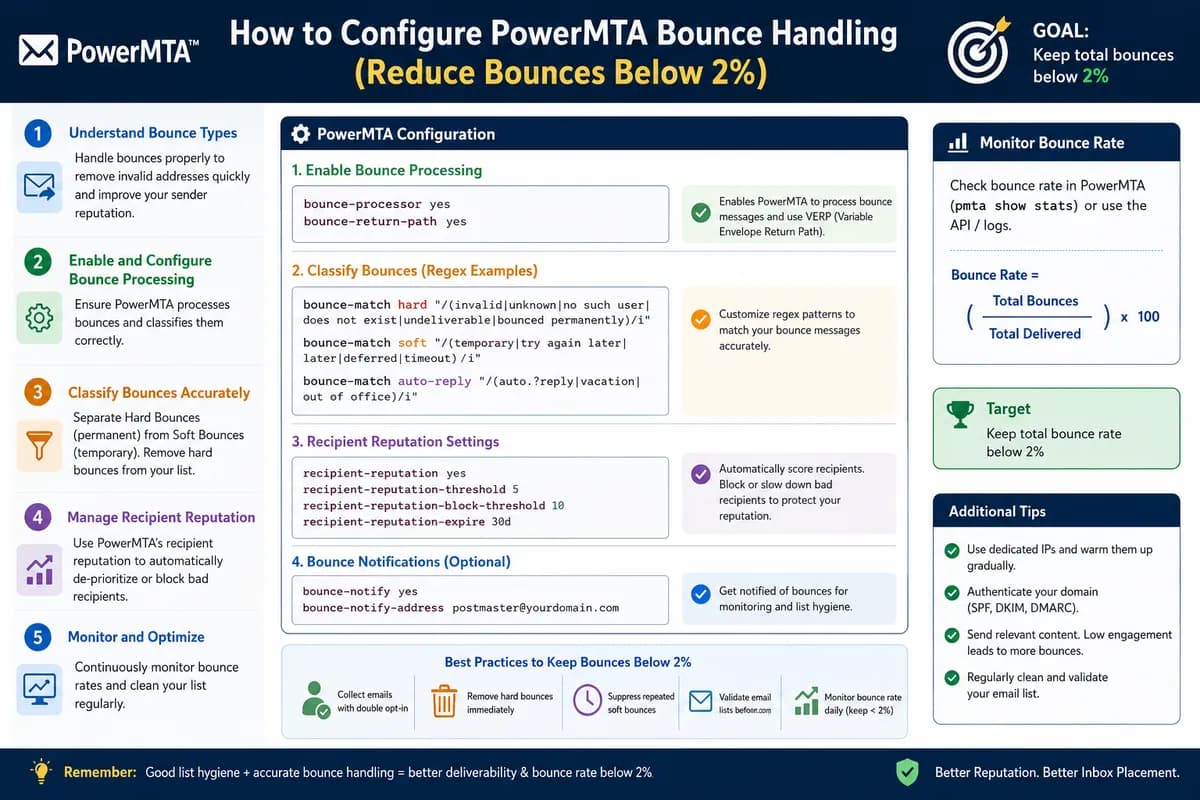
How to Configure PowerMTA Bounce Handling (Reduce Bounces Below 2%)
Gmail, Yahoo, and Microsoft now require bounce rates under 2%. This guide shows you how to configure PowerMTA's bounce processing, automate suppression, and keep your sender reputation clean.
Read more →