How to Install PowerMTA on AlmaLinux 8/9
Everything you need to install PowerMTA on AlmaLinux 8 or 9. This guide walks you through server preparation, installation, and getting your first email out the door.

AlmaLinux is a solid choice for email servers. It's a free, community-driven replacement for CentOS and works perfectly with PowerMTA. Whether you're on AlmaLinux 8 or 9, this guide has you covered.
Want to skip the manual setup? PMTAcore's PowerMTA Installer can do all of this automatically. But if you like getting your hands dirty, let's get into it.
Prerequisites
Here's what you need before starting:
- A clean AlmaLinux 8 or 9 server with at least 2GB RAM
- Root access or a user with sudo privileges
- A valid PowerMTA license
- A domain name with DNS access
- Port 25 unblocked by your hosting provider
Step 1: System Update and Dependencies
Start by bringing your system up to date and installing the tools you'll need:
sudo dnf update -y
sudo dnf install -y wget curl nano tar bind-utils
The bind-utils package gives you dig and nslookup, which are handy for DNS troubleshooting later.
Step 2: Disable SELinux (Optional but Recommended)
SELinux can interfere with PowerMTA's operation. You can either configure it properly or set it to permissive mode:
sudo setenforce 0
sudo sed -i 's/SELINUX=enforcing/SELINUX=permissive/' /etc/selinux/config
If you're running a production server, consider writing proper SELinux policies instead of disabling it entirely.
Step 3: Set the Hostname
Your hostname should match your mail domain's rDNS record. This is critical for deliverability.
sudo hostnamectl set-hostname mail.yourdomain.comAlso update /etc/hosts:
echo "YOUR_SERVER_IP mail.yourdomain.com" | sudo tee -a /etc/hostsStep 4: Install PowerMTA
Transfer your PowerMTA RPM to the server and install it:
# For AlmaLinux 8
sudo rpm -ivh pmta-5.x.x-x.el8.x86_64.rpm

# For AlmaLinux 9
sudo rpm -ivh pmta-5.x.x-x.el9.x86_64.rpm
Make sure you're using the correct RPM for your AlmaLinux version. Using the wrong one will cause dependency errors.
Step 5: License Setup
sudo cp license.txt /etc/pmta/license
sudo chown pmta:pmta /etc/pmta/license
sudo chmod 644 /etc/pmta/license
Step 6: Configure PowerMTA
Edit the main config file at /etc/pmta/config:
postmaster postmaster@yourdomain.com

smtp-listener 0.0.0.0:25

<source 0/0>
  always-allow-relaying yes
  smtp-service yes
</source>

<domain *>
  use-starttls yes
  require-starttls no
  max-smtp-out 20
  retry-after 10m
  bounce-after 4d12h
</domain>
For a production setup, you'll want to add DKIM, SPF, and DMARC records. We have a dedicated guide on setting up DKIM, SPF, and DMARC with PowerMTA.
Step 7: Open Firewall Ports
sudo firewall-cmd --permanent --add-service=smtp
sudo firewall-cmd --permanent --add-port=587/tcp
sudo firewall-cmd --permanent --add-port=8080/tcp
sudo firewall-cmd --reload
Step 8: Start and Enable PowerMTA
sudo systemctl start pmta
sudo systemctl enable pmta
sudo pmta show status
If everything is working, you'll see the PowerMTA version and status output.
Step 9: Test Your Setup
echo "Hello from AlmaLinux" | pmta inject --from test@yourdomain.com --to your-email@gmail.comCheck your inbox. If the email lands in spam, don't worry — that's normal without proper DNS authentication. Setting up DKIM and SPF will fix that.
AlmaLinux 8 vs 9: Key Differences
- Package manager: Both use
dnf, but AlmaLinux 9 has newer default packages - Firewall: Both use
firewalld, same commands work on both - OpenSSL: AlmaLinux 9 ships with OpenSSL 3.x, which may affect TLS configuration
- RPM compatibility: Use the correct RPM build for your version — el8 for AlmaLinux 8, el9 for AlmaLinux 9
Troubleshooting
- PowerMTA won't start: Check
/var/log/pmta/logfor error messages. Most common issue is a missing or invalid license. - Connection refused on port 25: Verify your firewall rules and check if your provider blocks SMTP traffic.
- Emails bouncing: Make sure your rDNS, SPF, and DKIM are all configured correctly.
Automate Everything with PMTAcore
Setting up PowerMTA manually works, but it takes time and there's room for error. PMTAcore handles the entire process automatically — from installation to DNS configuration to ongoing monitoring.
With PMTAcore, you get:
- One-click PowerMTA installation on AlmaLinux, Rocky Linux, CentOS, and more
- Automatic DNS setup including DKIM, SPF, and DMARC
- Real-time IP blacklist monitoring
- Cloud server management across multiple providers
Download PMTAcore today or explore our pricing options to find the right plan for you.
Related Articles

PowerMTA Gmail Bulk Sender Requirements 2026: Compliance Guide
Follow step-by-step PowerMTA configuration, SPF/DKIM/DMARC setup, and DNS changes to meet Google and Yahoo 2026 bulk sender rules. Includes spam-rate limits, unsubscribe, and automated auditing.
Read more →
The Complete PowerMTA Setup Guide for High-Volume Email Sending
Learn how to install, configure, and optimize PowerMTA for high-volume email delivery. This complete guide covers DNS authentication, VirtualMTAs, IP warm-up, deliverability best practices, and scaling your email infrastructure.
Read more →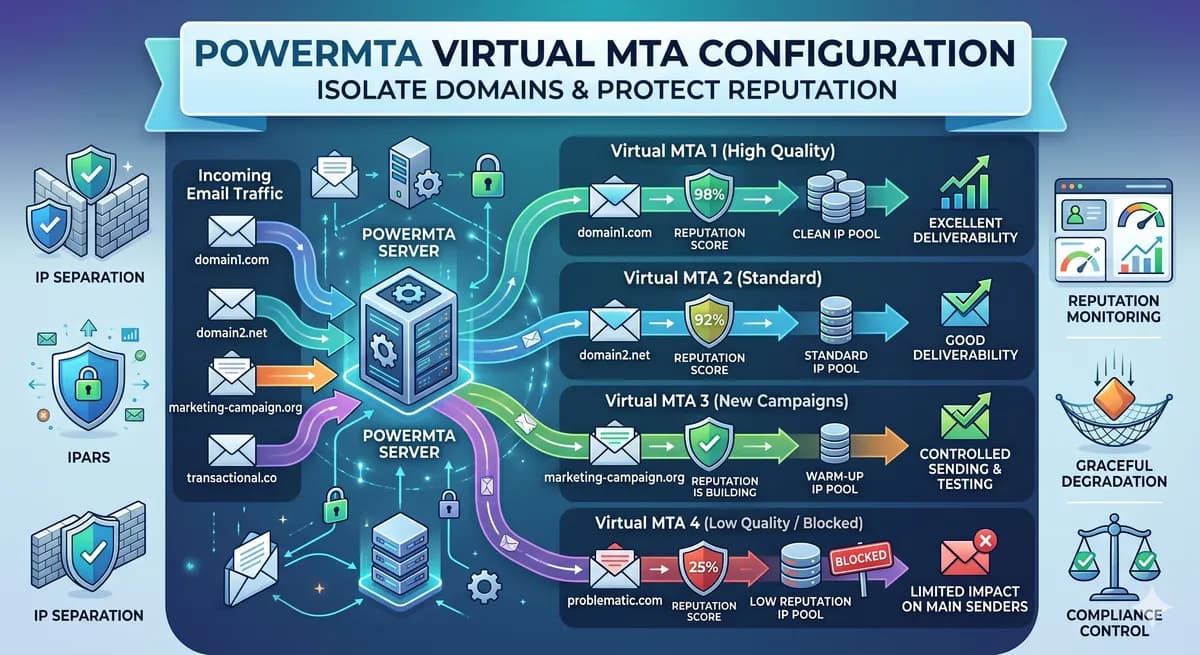
PowerMTA Virtual MTA Configuration – Isolate Domains & Protect Reputation
Using a single PowerMTA config for all domains is a critical mistake. Learn how to configure Virtual MTAs to isolate sending reputation, separate transactional from marketing mail, and prevent one bad domain from killing all your IPs.
Read more →