How to Configure DKIM, SPF, and DMARC for PowerMTA
Proper email authentication is the difference between landing in the inbox and landing in spam. This guide shows you how to set up DKIM, SPF, and DMARC for PowerMTA.
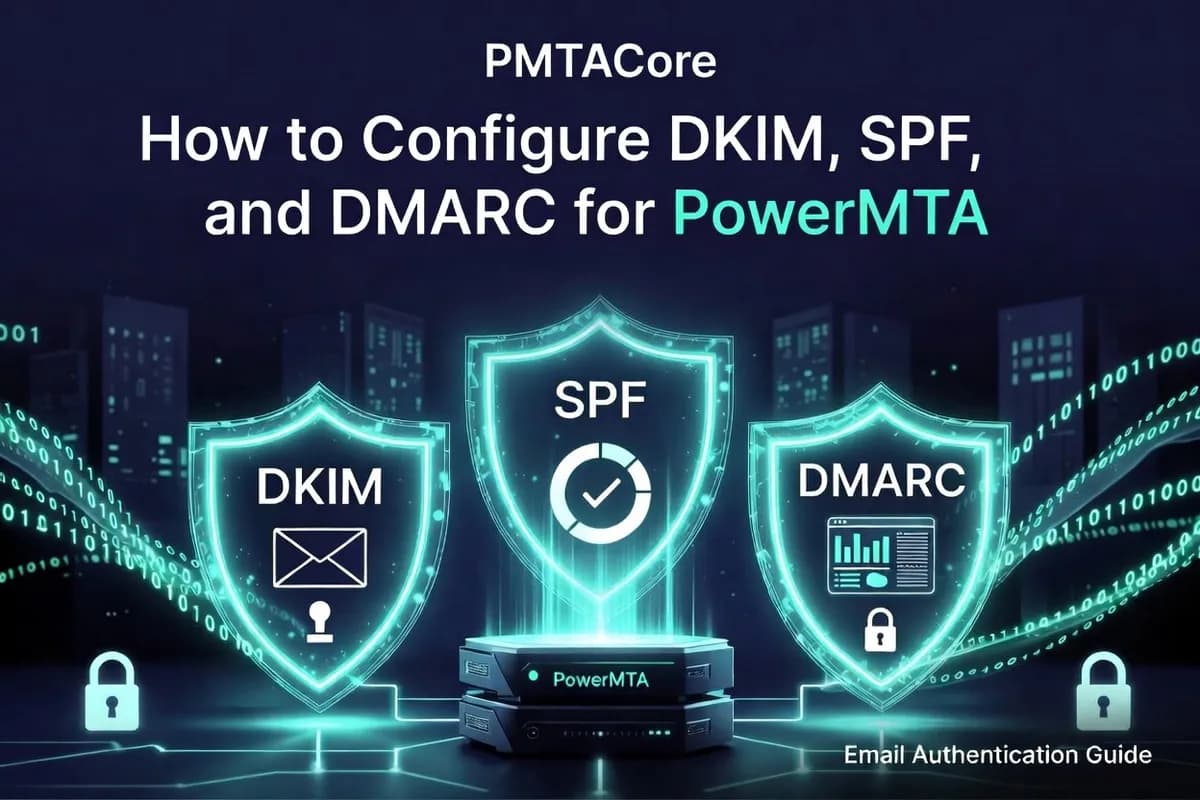
You've installed PowerMTA and sent a test email. But it landed in spam. Sound familiar? Nine times out of ten, the problem is missing or broken email authentication. DKIM, SPF, and DMARC are the three pillars of email authentication, and without them, your emails are going to have a hard time reaching the inbox.
Let's fix that. This guide walks you through setting up all three for PowerMTA.
Why Email Authentication Matters
Email providers like Gmail, Yahoo, and Outlook use authentication to decide whether to trust your emails. Here's what each protocol does:
- SPF (Sender Policy Framework) — tells the world which IP addresses are allowed to send email on behalf of your domain
- DKIM (DomainKeys Identified Mail) — adds a cryptographic signature to each email, proving it wasn't altered in transit
- DMARC (Domain-based Message Authentication, Reporting & Conformance) — tells receiving servers what to do when SPF or DKIM checks fail
Without these, your emails look suspicious to receiving servers. With them, you're telling the world "yes, this email really came from us, and it hasn't been tampered with."
Setting Up SPF
What You Need
You need access to your domain's DNS settings. This is usually through your domain registrar (Namecheap, GoDaddy, Cloudflare, etc.).
Create the SPF Record
Add a TXT record to your domain's DNS:
Type: TXT
Host: @
Value: v=spf1 ip4:YOUR_SERVER_IP -all
Replace YOUR_SERVER_IP with your actual server IP address. If you have multiple IPs, list them all:
v=spf1 ip4:1.2.3.4 ip4:5.6.7.8 ip4:9.10.11.0/24 -allThe -all at the end means "reject emails from any IP not listed here." You can use ~all (soft fail) during testing, but switch to -all for production.
Verify Your SPF Record
dig TXT yourdomain.comYou should see your SPF record in the output.
Setting Up DKIM
Step 1: Generate DKIM Keys
PowerMTA can generate DKIM keys for you. Run this on your server:
sudo mkdir -p /etc/pmta/dkim
cd /etc/pmta/dkim
sudo openssl genrsa -out yourdomain.com.pem 2048
sudo openssl rsa -in yourdomain.com.pem -pubout -out yourdomain.com.pub
This creates a 2048-bit RSA key pair. The .pem file is your private key (stays on the server), and the .pub file contains the public key (goes in DNS).
Step 2: Add DKIM to PowerMTA Config
Edit /etc/pmta/config and add:
<domain yourdomain.com>
  use-starttls yes
  dkim-sign yes
  dkim-identity @yourdomain.com
  dkim-selector pmta
  dkim-key /etc/pmta/dkim/yourdomain.com.pem
</domain>
The dkim-selector can be anything you want. Common choices are pmta, mail, default, or s1.
Step 3: Add the DNS Record
Get your public key content:
cat /etc/pmta/dkim/yourdomain.com.pubCopy everything between -----BEGIN PUBLIC KEY----- and -----END PUBLIC KEY-----, remove the line breaks to make it one long string, then create a DNS TXT record:
Type: TXT
Host: pmta._domainkey
Value: v=DKIM1; k=rsa; p=YOUR_PUBLIC_KEY_HERE
Replace pmta with whatever selector you chose in the config.
Step 4: Restart PowerMTA
sudo pmta reloadStep 5: Verify DKIM
dig TXT pmta._domainkey.yourdomain.comYou should see your DKIM public key in the response.
Setting Up DMARC
DMARC builds on top of SPF and DKIM. It tells receiving servers what to do when authentication fails and where to send reports.
Create the DMARC Record
Add a TXT record to your DNS:
Type: TXT
Host: _dmarc
Value: v=DMARC1; p=none; rua=mailto:dmarc-reports@yourdomain.com; pct=100
Here's what each part means:
p=none— don't take action on failed emails (monitoring mode). Change top=quarantineorp=rejectonce you're confident everything works.rua=mailto:...— where to send aggregate reports. These reports show you who's sending email using your domain.pct=100— apply the policy to 100% of emails.
Recommended DMARC Rollout
- Week 1-2:
p=none— monitor only, collect reports - Week 3-4:
p=quarantine; pct=25— quarantine 25% of failing emails - Week 5-6:
p=quarantine; pct=100— quarantine all failing emails - Week 7+:
p=reject— reject all failing emails
Don't jump straight to p=reject. If something is misconfigured, you could block your own legitimate emails.
Testing Everything Together
After setting up all three, send a test email to a Gmail address and check the headers. Look for:
Authentication-Results:
  spf=pass
  dkim=pass
  dmarc=pass
In Gmail, click the three dots on the email and select "Show original" to see the full headers.
You can also use online tools like mail-tester.com to get a detailed score of your email authentication setup.
Common Mistakes to Avoid
- Multiple SPF records: You can only have ONE SPF TXT record per domain. If you have multiple, merge them into one.
- Wrong DKIM selector: The selector in your DNS must match the selector in your PowerMTA config exactly.
- DKIM key too short: Use 2048-bit keys. Some older guides suggest 1024-bit, but that's no longer considered secure.
- Forgetting to reload: After changing the PowerMTA config, always run
sudo pmta reload. - DNS propagation: DNS changes can take up to 48 hours to propagate. Be patient.
Automate DNS with PMTAcore
Setting up DKIM, SPF, and DMARC manually is doable, but it's tedious and error-prone — especially when you're managing multiple domains and IPs.
PMTAcore's DNS Automation feature handles all of this for you. It generates DKIM keys, creates the correct DNS records, and verifies everything is working — all from a simple interface.
Combined with the PowerMTA Management tool, you can go from a bare server to a fully authenticated email setup in minutes instead of hours.
Download PMTAcore or start a free trial to see how much time you can save.
Related Articles
PowerMTA Gmail Bulk Sender Requirements 2026: Compliance Guide
Follow step-by-step PowerMTA configuration, SPF/DKIM/DMARC setup, and DNS changes to meet Google and Yahoo 2026 bulk sender rules. Includes spam-rate limits, unsubscribe, and automated auditing.
Read more →
The Complete PowerMTA Setup Guide for High-Volume Email Sending
Learn how to install, configure, and optimize PowerMTA for high-volume email delivery. This complete guide covers DNS authentication, VirtualMTAs, IP warm-up, deliverability best practices, and scaling your email infrastructure.
Read more →
Cold Email in 2026: What Actually Works and Why
Cold email still wins in 2026 when it is done right. Learn what separates promotions that land in the inbox from ones that vanish into spam, and how a self-hosted setup gives you full control over deliverability.
Read more →