How to Install PowerMTA on Rocky Linux 9 (Step-by-Step Guide)
A complete walkthrough for installing PowerMTA on Rocky Linux 9. From server prep to your first test email, this guide covers everything you need to get started.
Rocky Linux 9 has become one of the most popular choices for running email infrastructure. It's stable, well-supported, and works great with PowerMTA. In this guide, we'll walk you through the entire installation process from start to finish.
If you want to skip the manual work entirely, PMTAcore can install and configure PowerMTA on your server with just a few clicks. But if you prefer doing it yourself, keep reading.
What You'll Need Before Starting
Before you begin, make sure you have the following ready:
- A fresh Rocky Linux 9 server (minimum 2GB RAM, 1 vCPU)
- Root or sudo access to the server
- A valid PowerMTA license file
- A domain name pointed to your server's IP address
- Port 25 open on your server (check with your hosting provider)
Most cloud providers like DigitalOcean, Vultr, and Linode offer Rocky Linux 9 as a default image. If yours doesn't, you can install it manually from the Rocky Linux website.
Step 1: Update Your Server
First things first — update all existing packages. This makes sure you're starting with the latest security patches and dependencies.
sudo dnf update -y
sudo dnf install -y wget curl nano tar
These basic utilities will be needed throughout the installation process.
Step 2: Set Your Hostname
Your server's hostname should match the reverse DNS (rDNS) of your IP address. This is important for email deliverability.
sudo hostnamectl set-hostname mail.yourdomain.comVerify it with:
hostname -fStep 3: Upload and Install PowerMTA
Upload your PowerMTA RPM package to the server using SCP or SFTP. Then install it:
sudo rpm -ivh pmta-5.x.x-x.x86_64.rpmReplace the filename with whatever version you have. After installation, the PowerMTA binary will be available at /usr/sbin/pmta.
Step 4: Add Your License
Copy your license file to the PowerMTA configuration directory:
sudo cp license.txt /etc/pmta/licenseWithout a valid license, PowerMTA won't start. Make sure the file is readable by the pmta user.
Step 5: Basic Configuration
The main configuration file is located at /etc/pmta/config. Here's a minimal setup to get you started:
postmaster postmaster@yourdomain.com

smtp-listener 0.0.0.0:25

<source 0/0>
  always-allow-relaying yes
  smtp-service yes
</source>

<domain *>
  use-starttls yes
  require-starttls no
  max-smtp-out 20
  smtp-pattern-lifetime 1h
</domain>
This is a basic config. For production use, you'll want to add DKIM signing, IP rotation, and proper domain-level settings. Check out our guide on configuring DKIM, SPF, and DMARC for PowerMTA for that.
Step 6: Start PowerMTA
sudo systemctl start pmta
sudo systemctl enable pmta
Check that it's running:
sudo pmta show statusYou should see output showing the version number and that the service is active.
Step 7: Send a Test Email
Use the built-in command to send a quick test:
echo "Test email body" | pmta inject --from test@yourdomain.com --to your-email@gmail.comCheck your inbox (and spam folder) to confirm delivery.
Step 8: Configure Your Firewall
Make sure the necessary ports are open:
sudo firewall-cmd --permanent --add-port=25/tcp
sudo firewall-cmd --permanent --add-port=587/tcp
sudo firewall-cmd --permanent --add-port=8080/tcp
sudo firewall-cmd --reload
Port 8080 is for the PowerMTA web monitor, which gives you a browser-based dashboard to check queues and delivery stats.
Common Issues and Fixes
- Port 25 blocked: Many cloud providers block port 25 by default. You'll need to submit a support ticket to get it opened.
- License errors: Double-check that the license file is in
/etc/pmta/and has the correct permissions. - DNS not resolving: Make sure your A record and rDNS are properly configured before sending emails.
The Easier Way: Use PMTAcore
If all of this feels like a lot of work, that's because it is. PMTAcore automates the entire process. With the PowerMTA Installer tool, you can install PowerMTA on Rocky Linux 9 (or any supported OS) in minutes — no command line needed.
PMTAcore also handles DNS configuration, IP blacklist monitoring, and campaign management all from one dashboard.
Ready to try it? Download PMTAcore or check out our pricing plans.
Related Articles

PowerMTA Gmail Bulk Sender Requirements 2026: Compliance Guide
Follow step-by-step PowerMTA configuration, SPF/DKIM/DMARC setup, and DNS changes to meet Google and Yahoo 2026 bulk sender rules. Includes spam-rate limits, unsubscribe, and automated auditing.
Read more →
The Complete PowerMTA Setup Guide for High-Volume Email Sending
Learn how to install, configure, and optimize PowerMTA for high-volume email delivery. This complete guide covers DNS authentication, VirtualMTAs, IP warm-up, deliverability best practices, and scaling your email infrastructure.
Read more →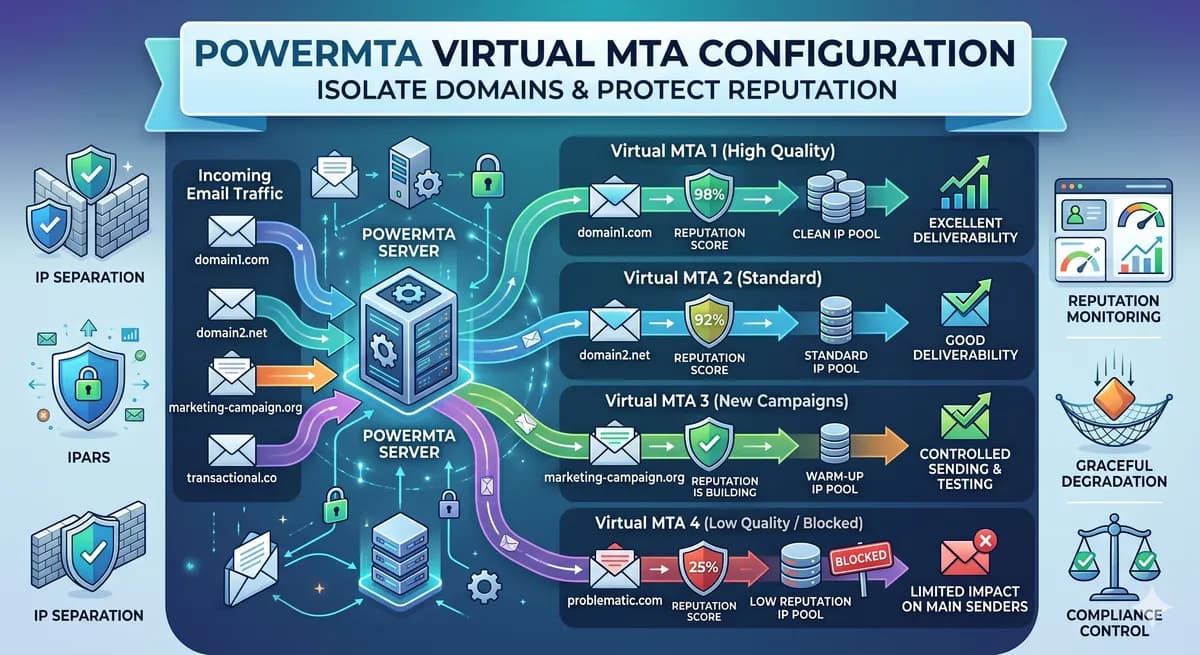
PowerMTA Virtual MTA Configuration – Isolate Domains & Protect Reputation
Using a single PowerMTA config for all domains is a critical mistake. Learn how to configure Virtual MTAs to isolate sending reputation, separate transactional from marketing mail, and prevent one bad domain from killing all your IPs.
Read more →