PowerMTA Installation Guide (Complete Beginner Tutorial)
Brand new to PowerMTA? This beginner-friendly tutorial covers everything from picking a server to sending your first email. Written for people who have never touched an email server before.

If you've never set up an email server before, PowerMTA can feel overwhelming. There are config files, DNS records, IP addresses, and a bunch of terms that don't make sense yet. Don't worry — this guide is written for complete beginners. We'll explain everything as we go.
By the end of this tutorial, you'll have a working PowerMTA server that can send emails. Let's start from the very beginning.
What Is PowerMTA?
PowerMTA (also called PMTA) is a commercial email server software made by Port25 Solutions. It's used by businesses and email marketers to send large volumes of email reliably. Think of it as the engine that actually delivers your emails to inboxes.
Unlike free alternatives like Postfix, PowerMTA gives you fine-grained control over things like IP rotation, delivery speed, bounce handling, and queue management. It's the industry standard for high-volume email sending.
What You Need to Get Started
1. A Linux Server
PowerMTA runs on Linux. The most common choices are:
- Rocky Linux 9 — our recommended choice (see our Rocky Linux installation guide)
- AlmaLinux 8/9 — another great option (see our AlmaLinux installation guide)
- CentOS 7 — still works but reaching end of life
- Ubuntu 20.04/22.04 — works well if you prefer Debian-based systems
You can get a server from providers like DigitalOcean, Vultr, Linode, or any other cloud provider. A server with 2GB RAM and 1 vCPU is enough to start.
2. A PowerMTA License
PowerMTA is not free software. You need to purchase a license from Port25 or an authorized reseller. The license file is what allows the software to run on your server.
3. A Domain Name
You need at least one domain name to send emails from. You'll also need access to its DNS settings to add records like SPF, DKIM, and DMARC.
4. A Clean IP Address
Your server's IP address should not be on any blacklists. You can check this using our IP Blacklist Checker tool.
The Installation Process (Simplified)
Here's the high-level overview of what you'll be doing:
- Set up a Linux server
- Update the system and install dependencies
- Upload and install the PowerMTA package
- Add your license file
- Edit the configuration file
- Set up DNS records (SPF, DKIM, DMARC)
- Start PowerMTA and send a test email
Step 1: Get Your Server Ready
After logging into your server via SSH, update everything:
sudo dnf update -y          # For Rocky/AlmaLinux
# or
sudo apt update && sudo apt upgrade -y   # For Ubuntu
Install basic tools:
sudo dnf install -y wget curl nano    # Rocky/AlmaLinux
# or
sudo apt install -y wget curl nano    # Ubuntu
Step 2: Set Your Hostname
This is more important than most beginners realize. Your hostname should match the reverse DNS (rDNS) of your IP. If your IP is 1.2.3.4 and your domain is yourdomain.com, set it like this:
sudo hostnamectl set-hostname mail.yourdomain.comThen ask your hosting provider to set the rDNS of your IP to mail.yourdomain.com. Most providers have this option in their control panel.
Step 3: Install PowerMTA
Upload the PowerMTA package to your server and install it:
# RPM-based systems (Rocky, Alma, CentOS)
sudo rpm -ivh pmta-5.x.x.rpm

# Debian-based systems (Ubuntu)
sudo dpkg -i pmta-5.x.x.deb
Step 4: Add Your License
sudo cp license.txt /etc/pmta/licenseStep 5: Basic Configuration
The config file lives at /etc/pmta/config. Here's a beginner-friendly starting point:
postmaster postmaster@yourdomain.com

# Listen for incoming connections
smtp-listener 0.0.0.0:25

# Allow relaying from localhost
<source 127.0.0.1>
  always-allow-relaying yes
</source>

# Default settings for all domains
<domain *>
  use-starttls yes
  max-smtp-out 10
  retry-after 10m
  bounce-after 4d12h
</domain>
This config is intentionally simple. As you learn more, you'll add DKIM signing, virtual MTAs, IP rotation, and domain-specific rules.
Step 6: Set Up DNS Records
This is where many beginners get stuck. You need three types of DNS records:
- SPF — tells receiving servers which IPs are allowed to send email for your domain
- DKIM — adds a digital signature to your emails to prove they haven't been tampered with
- DMARC — tells receiving servers what to do with emails that fail SPF or DKIM checks
We have a detailed guide on how to configure DKIM, SPF, and DMARC for PowerMTA. Or you can use PMTAcore's DNS Automation feature to set these up automatically.
Step 7: Start PowerMTA
sudo systemctl start pmta
sudo systemctl enable pmta
Check the status:
sudo pmta show statusStep 8: Send a Test Email
echo "This is a test" | pmta inject --from test@yourdomain.com --to yourpersonal@gmail.comIf it arrives in your inbox, congratulations — your PowerMTA server is working.
What to Do Next
Now that you have a basic setup running, here are the next steps to make it production-ready:
- Set up DKIM signing — essential for inbox delivery
- Configure IP rotation — if you have multiple IPs (see our IP rotation guide)
- Warm up your IPs — don't blast thousands of emails on day one (see our IP warmup guide)
- Monitor blacklists — use the IP Blacklist Checker regularly
- Test SMTP connections — make sure all ports are working (see our SMTP testing guide)
Or Just Use PMTAcore
Look, we get it — this is a lot of steps. And we only covered the basics. A production email server needs ongoing maintenance, monitoring, and tweaking.
PMTAcore was built to handle all of this for you. It's a desktop application that manages your entire email infrastructure:
- Install PowerMTA on any supported Linux server with one click
- Automate DNS setup including DKIM, SPF, and DMARC
- Send campaigns with built-in tracking and analytics
- Test SMTP connections across all common ports
- Manage cloud servers from DigitalOcean, Vultr, Linode, and more
- Validate email lists before sending
Try PMTAcore free or check out our pricing page to get started.
Related Articles
PowerMTA Gmail Bulk Sender Requirements 2026: Compliance Guide
Follow step-by-step PowerMTA configuration, SPF/DKIM/DMARC setup, and DNS changes to meet Google and Yahoo 2026 bulk sender rules. Includes spam-rate limits, unsubscribe, and automated auditing.
Read more →
The Complete PowerMTA Setup Guide for High-Volume Email Sending
Learn how to install, configure, and optimize PowerMTA for high-volume email delivery. This complete guide covers DNS authentication, VirtualMTAs, IP warm-up, deliverability best practices, and scaling your email infrastructure.
Read more →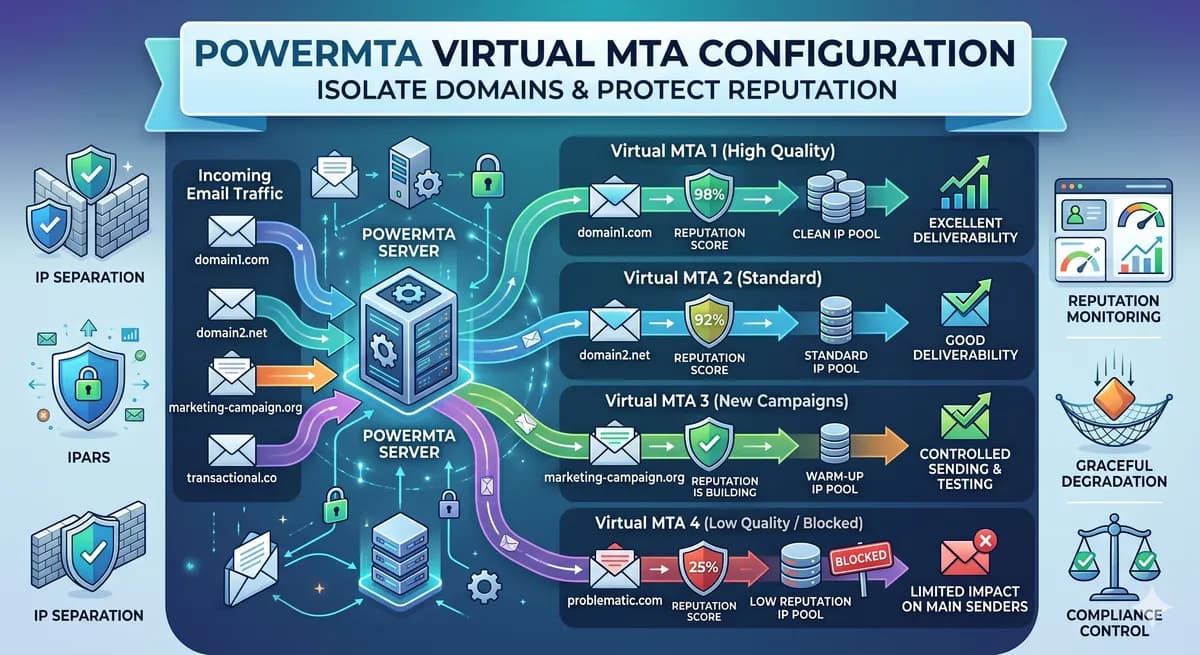
PowerMTA Virtual MTA Configuration – Isolate Domains & Protect Reputation
Using a single PowerMTA config for all domains is a critical mistake. Learn how to configure Virtual MTAs to isolate sending reputation, separate transactional from marketing mail, and prevent one bad domain from killing all your IPs.
Read more →